User guide
Random Letter Generator Guide: Every Option Explained
This guide covers every button and setting of the random letter generator, one area at a time. Each screenshot has numbers, and the list beside it says what each number does.
2
Ways to draw: letters or a wheel
1 to 100
Letters in one draw
9
Alphabets, or your own letters
3
Tabs in Advanced settings
01 / Quick start
How do I use the random letter generator?
Pick Letters or Wheel, set the letter lab if you want something other than one capital from A to Z, then tap the big button. The letter appears on the stage and goes into the Recent row.
- Choose how to draw: Letters for quick draws of 1 to 100 letters, Wheel for a spin everyone can watch.
- Set the letter lab: type of letters, alphabet, no repeats and speech.
- Tap the button: Generate Letter, or Spin the Wheel.
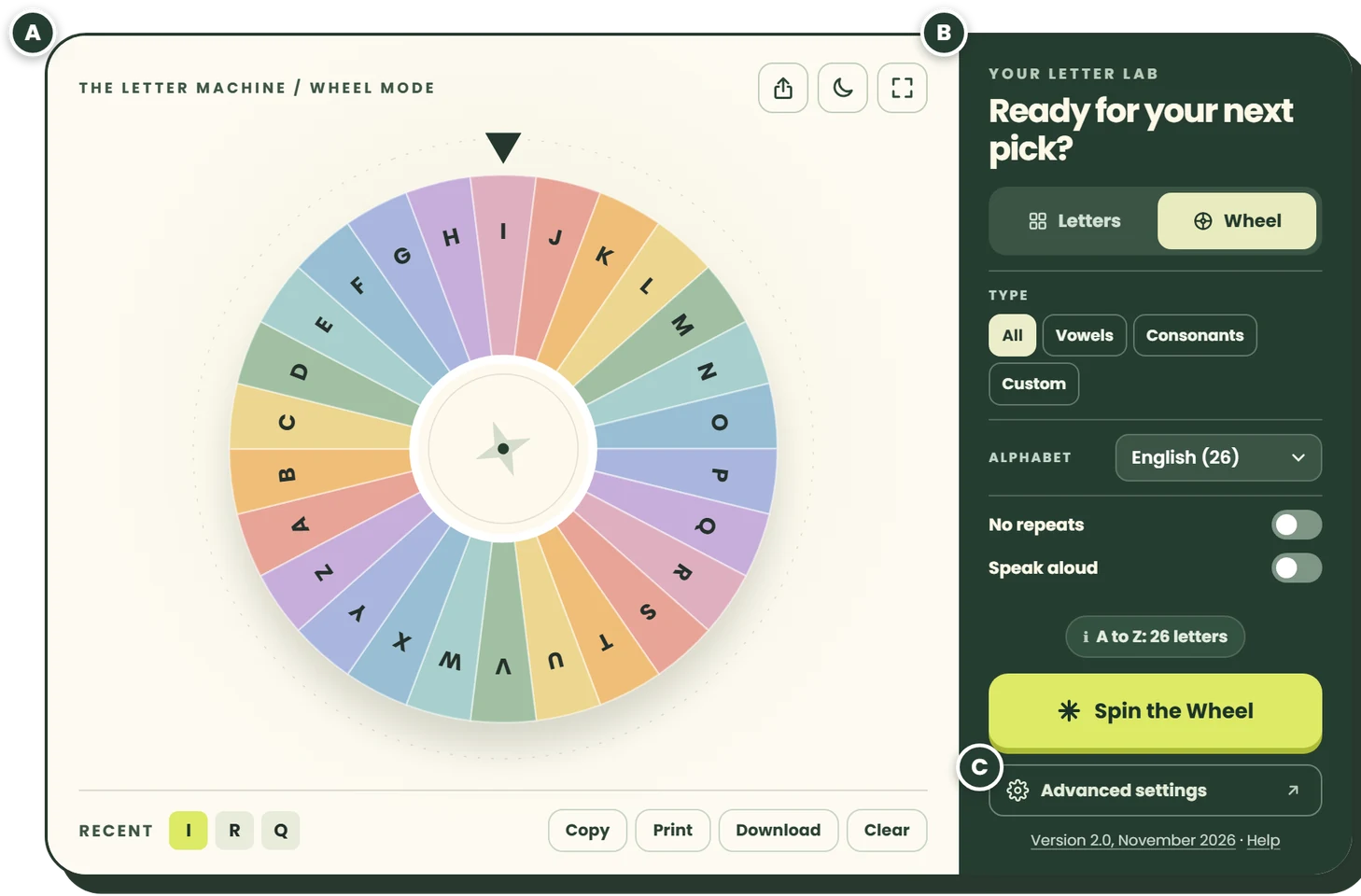
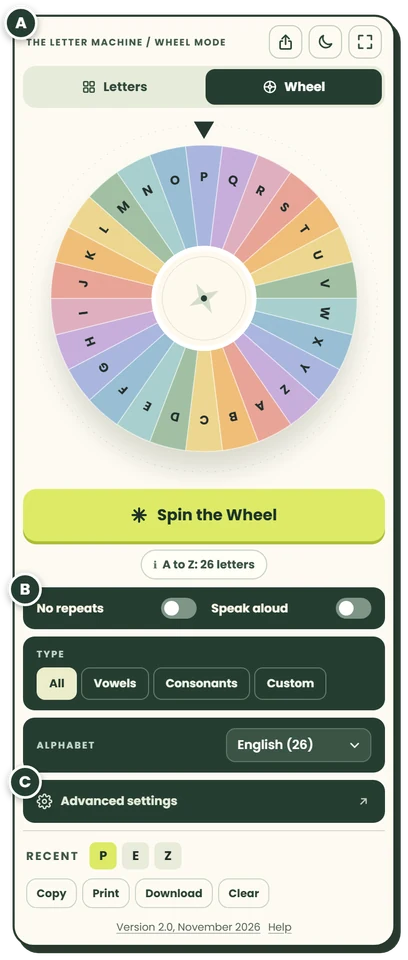
The tool has three areas: A, the stage, where the wheel or letters appear; B, the letter lab, with the main controls; C, Advanced settings, which opens everything else. On a computer the stage is on the left and the letter lab on the right. On a phone they share one column: the Letters / Wheel switch sits above the wheel, the main button below it, then the dark green controls, and the Recent row comes near the end.
02 / The stage
What does each part of the stage do?
The stage shows the wheel or your letters, with three icons at the top and your recent draws at the bottom.
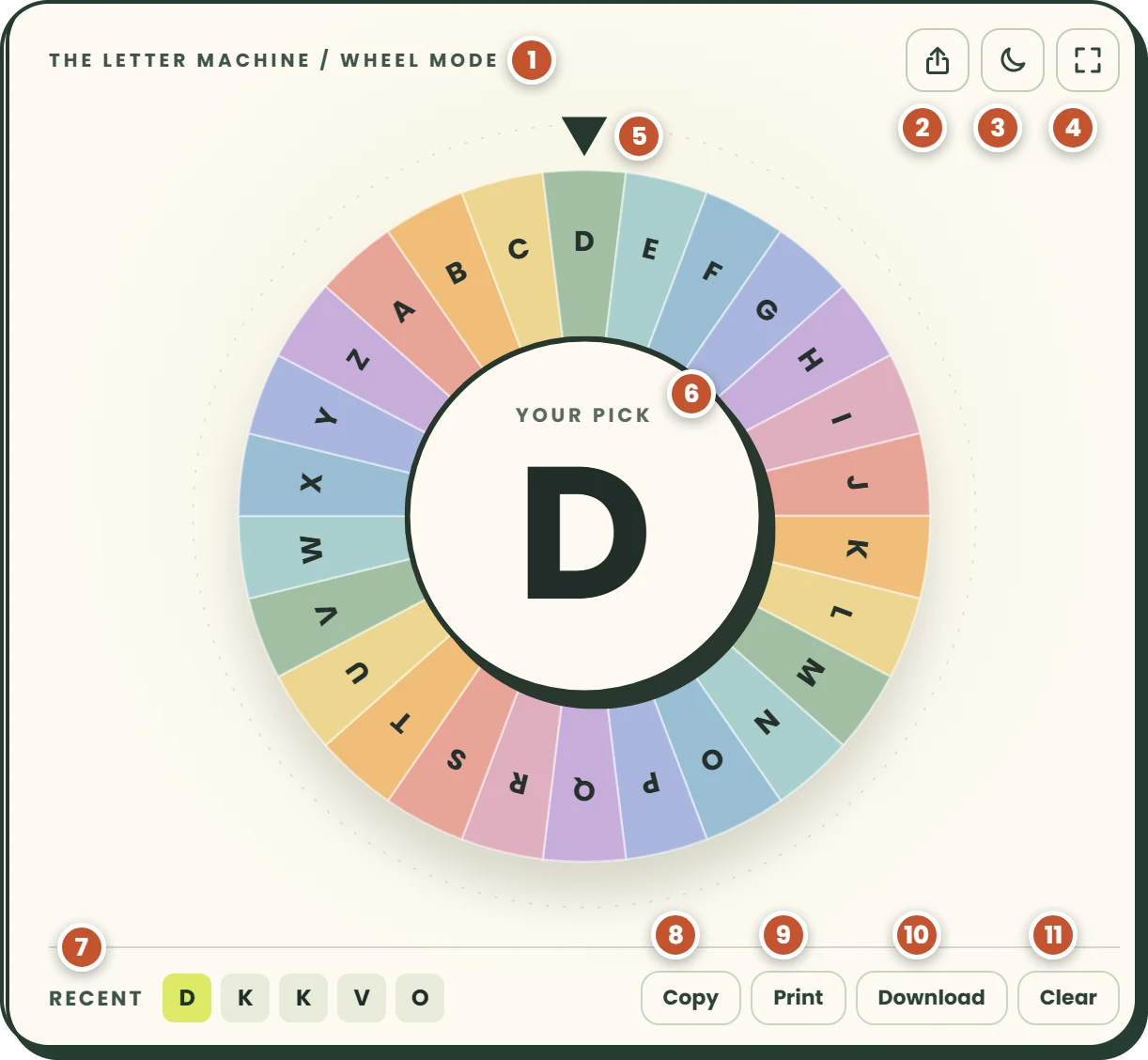
- Mode caption: says Wheel mode or Letters mode.
- Share: copies a link with your settings. On a touch screen it can open the share menu instead.
- Night mode: switches the tool to dark green. Tap again for day.
- Full screen: a big wheel or letter for a class screen.
- Pointer: the wheel stops with your letter under it.
- Your pick: the letter shows large over the wheel for about 3 seconds. In Letters mode the letter, or letters, fill the stage instead.
- Recent: your last 10 draws, newest first and highlighted. After a draw of several letters it shows that whole draw.
- Copy: copies the Recent letters, separated by commas.
- Print: prints only the letters, up to the last 100 draws.
- Download: saves up to the last 500 draws as a .txt or .csv file.
- Clear: empties the Recent row, and the list that Print and Download use.
03 / The letter lab
How do I use the letter lab?
The letter lab is the dark green panel. It holds the settings you change most, and the button that draws.
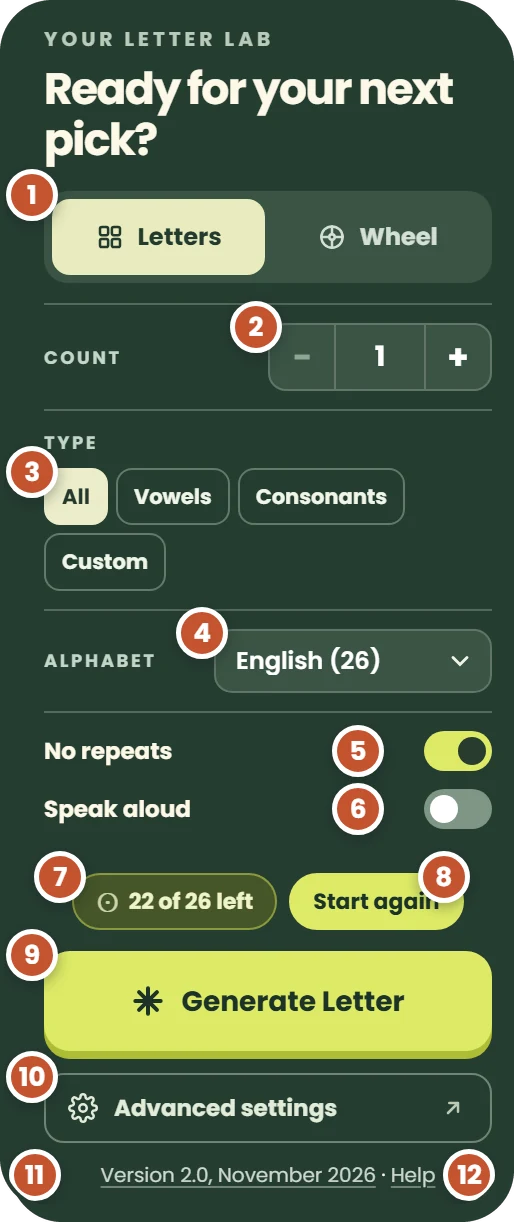
- Letters / Wheel: quick letter draws or the spinning wheel. On the homepage the tool opens in the mode you used last.
- Count: 1 to 100 letters per draw. Tap minus or plus, or type a number. Letters mode only.
- Type: All, Vowels (A, E, I, O, U), Consonants (the other 21), or Custom for your own letters. Vowels and Consonants work with English only.
- Alphabet: English, Spanish, French, German, Italian, Portuguese, Dutch, Greek or Russian. The number is how many letters it has.
- No repeats: every letter comes up once before any letter comes up again.
- Speak aloud: your device reads each letter out.
- Letters left: with No repeats on, it counts down, such as “22 of 26 left”. With it off, it names the set, such as “A to Z: 26 letters”.
- Start again: puts every letter back for a new round.
- Main button: Generate Letter, Generate Letters when Count is more than 1, or Spin the Wheel.
- Advanced settings: opens Settings, with three tabs.
- Version line: the tool version and month. It opens the changelog.
- Help: opens this guide in a new tab.
No repeats in the letter lab and “No repeats until all are used” in Settings are the same switch, and so are the two Alphabet menus. A no-repeats round lasts until you close the tab, and a new letter set starts a new round. On the wheel, each letter drawn leaves the wheel.
04 / Several letters
How do I draw several letters at once?
Switch to Letters, set Count to 2 or more, and tap Generate Letters. You can draw up to 100 letters at a time.
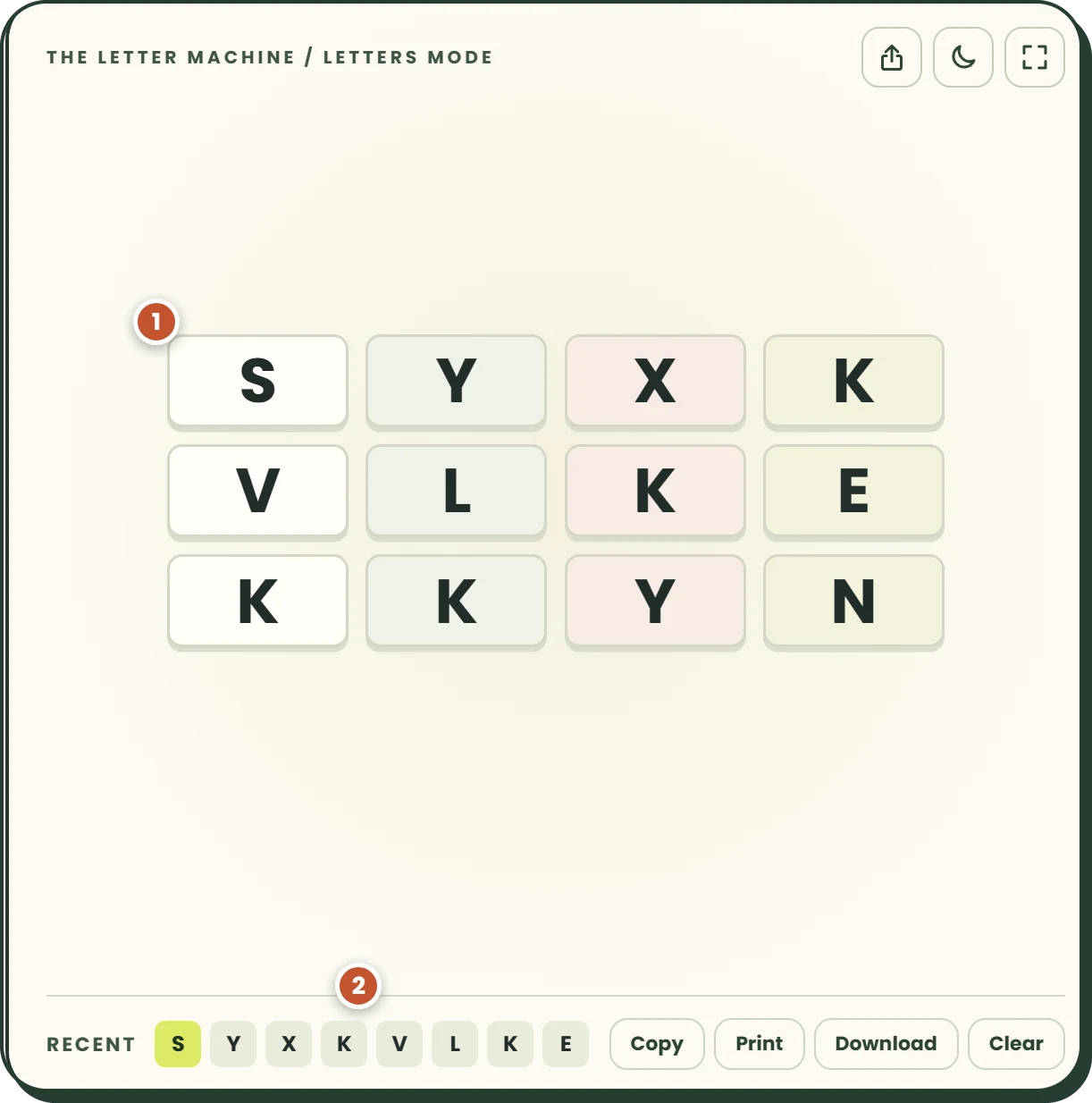
- The draw: shown in a row that wraps, or as a grid. Choose Row or Grid, and 2 to 10 columns or Auto, in Advanced settings.
- Recent: holds the whole draw, so Copy, Print and Download include every letter.
To keep the same letter from coming up twice in one draw, switch on Unique in set in Advanced settings. With it on, if you ask for more letters than the set has, you get every letter once and no more. The same happens near the end of a no-repeats round.
05 / Settings, tab 1 of 3
How do I choose which letters can come up?
Open Advanced settings and stay on the first tab, Letters. Here you pick the alphabet, type your own letters, leave letters out and decide how repeats work. Changes apply at once, and Done or the Escape key closes Settings.
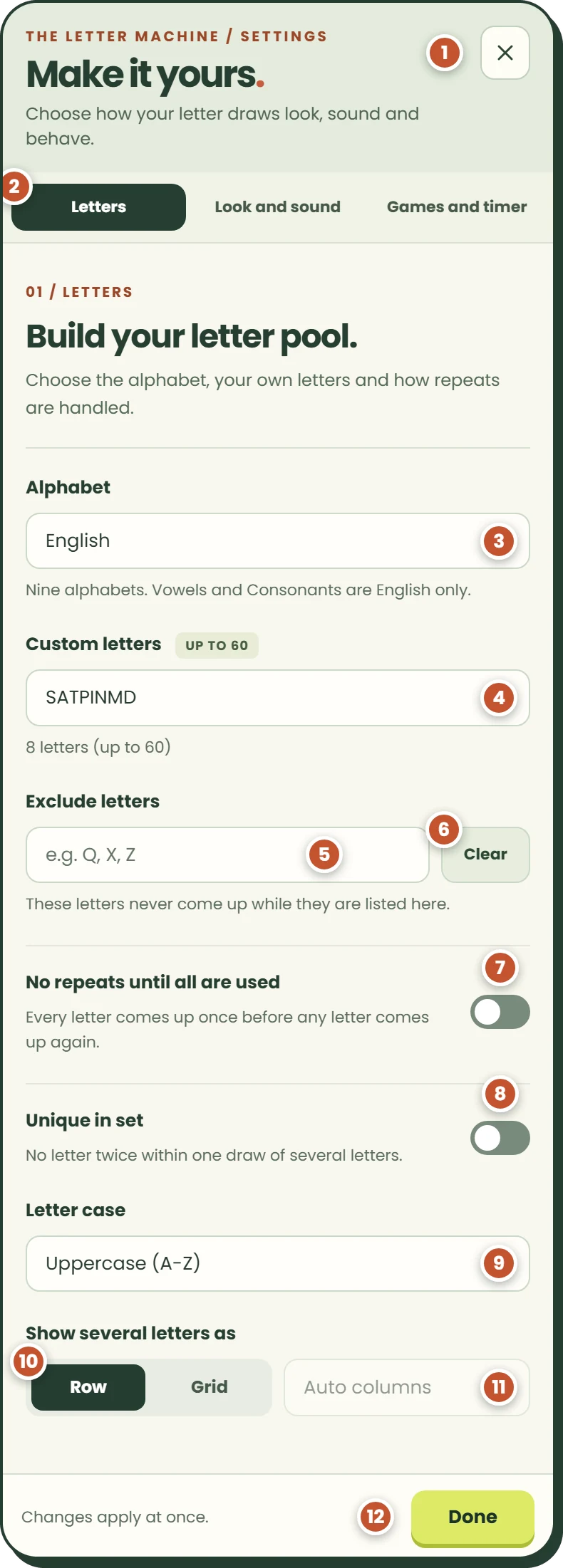
- Close: closes Settings, like Done.
- Tabs: Letters, Look and sound, Games and timer. On a phone they run across the top; on a computer, down the left side.
- Alphabet: the same menu as in the letter lab.
- Custom letters: shows when Type is Custom. Type or paste up to 60 letters, in any script. A letter typed twice counts once, and anything that is not a letter is left out.
- Exclude letters: letters that never come up while they are listed, such as Q, X, Z. It works with every type, Custom too.
- Clear: empties the Exclude box.
- No repeats until all are used: the same switch as No repeats in the letter lab.
- Unique in set: no letter twice within one draw. It shows when Count is 2 or more in Letters mode, with No repeats off.
- Letter case: Uppercase, Lowercase or Mixed. With Mixed, the letter is picked first and its case second, 50/50, and the wheel shows both forms, such as Aa.
- Row or Grid: how several letters are laid out. It shows when Count is 2 or more.
- Columns: Auto, or 2 to 10 columns, for the grid.
- Done: closes Settings.
How the pick stays fair with each of these settings is on How it works.
06 / Settings, tab 2 of 3
How do I change the wheel colours, voice and speed?
Open Advanced settings and choose Look and sound. These settings change how a draw looks and sounds, never which letter you get.
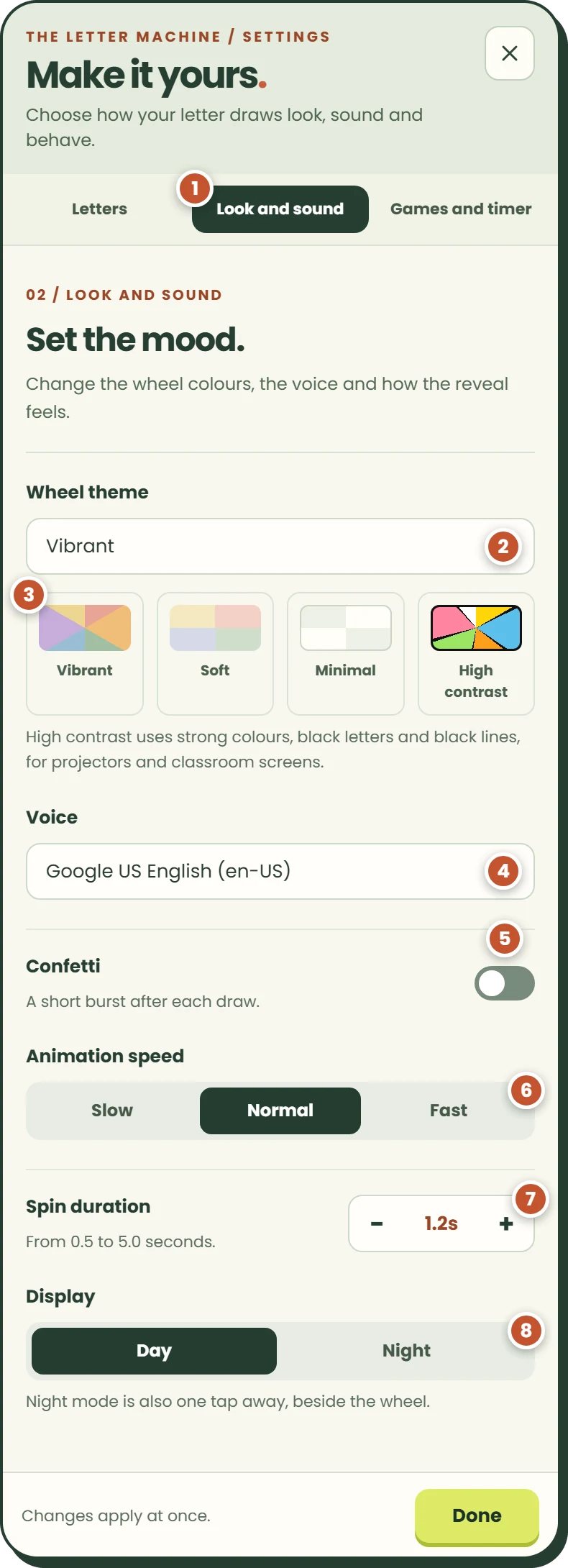
- Look and sound tab
- Wheel theme: Vibrant (the default), Soft, Minimal or High contrast.
- Theme samples: a preview of each theme.
- Voice: the voices your device offers, so the list differs between phones, computers and browsers. With another alphabet, the tool uses a voice for that language when it finds one.
- Confetti: a short burst after each draw. It starts switched off.
- Animation speed: how fast a draw moves, not how long it takes. At the default spin time, Slow turns the wheel once, Normal 3 times and Fast 6 times.
- Spin duration: 0.5 to 5.0 seconds, in steps of 0.1. The default is 1.2 seconds. If your device is set to reduce motion, a spin takes 0.4 seconds.
- Display: Day or Night, the same as the night mode icon.
07 / Settings, tab 3 of 3
How do I add a round timer?
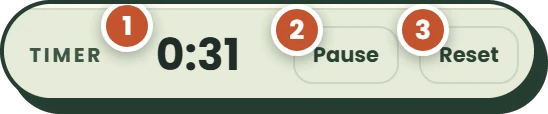
Open Advanced settings, choose Games and timer and switch on Round timer. A countdown appears on the tool with Start and Reset.
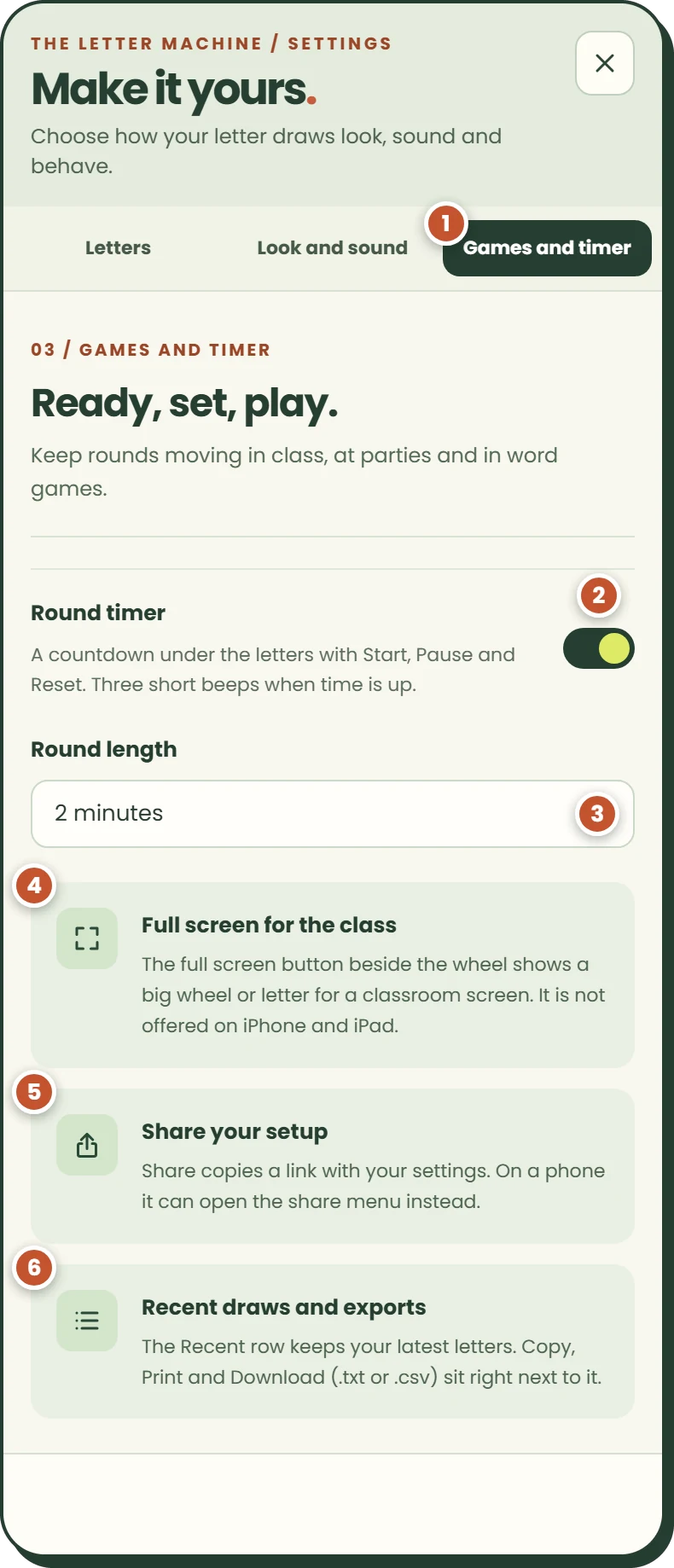
- Games and timer tab
- Round timer: shows or hides the countdown.
- Round length: 1, 2, 3, 4 or 5 minutes. The default is 2.
- Full screen tip
- Share tip
- Recent and exports tip: the three tips explain buttons found elsewhere; they change nothing.
On the countdown itself, Start becomes Pause while the timer runs and Resume after a pause. Reset goes back to the full round length. At zero you hear three short beeps. The round length is remembered; the timer switch is not, so it starts off on your next visit. A share link can switch it on, which is how the “Set up this game” links on the Games page work.
08 / Classroom screen
How do I show the generator full screen?
Tap the full screen icon, the four corners at the top of the tool. The tool fills the browser window with a bigger wheel or letter, the main button and your recent draws. Press Escape or tap the cross to go back.
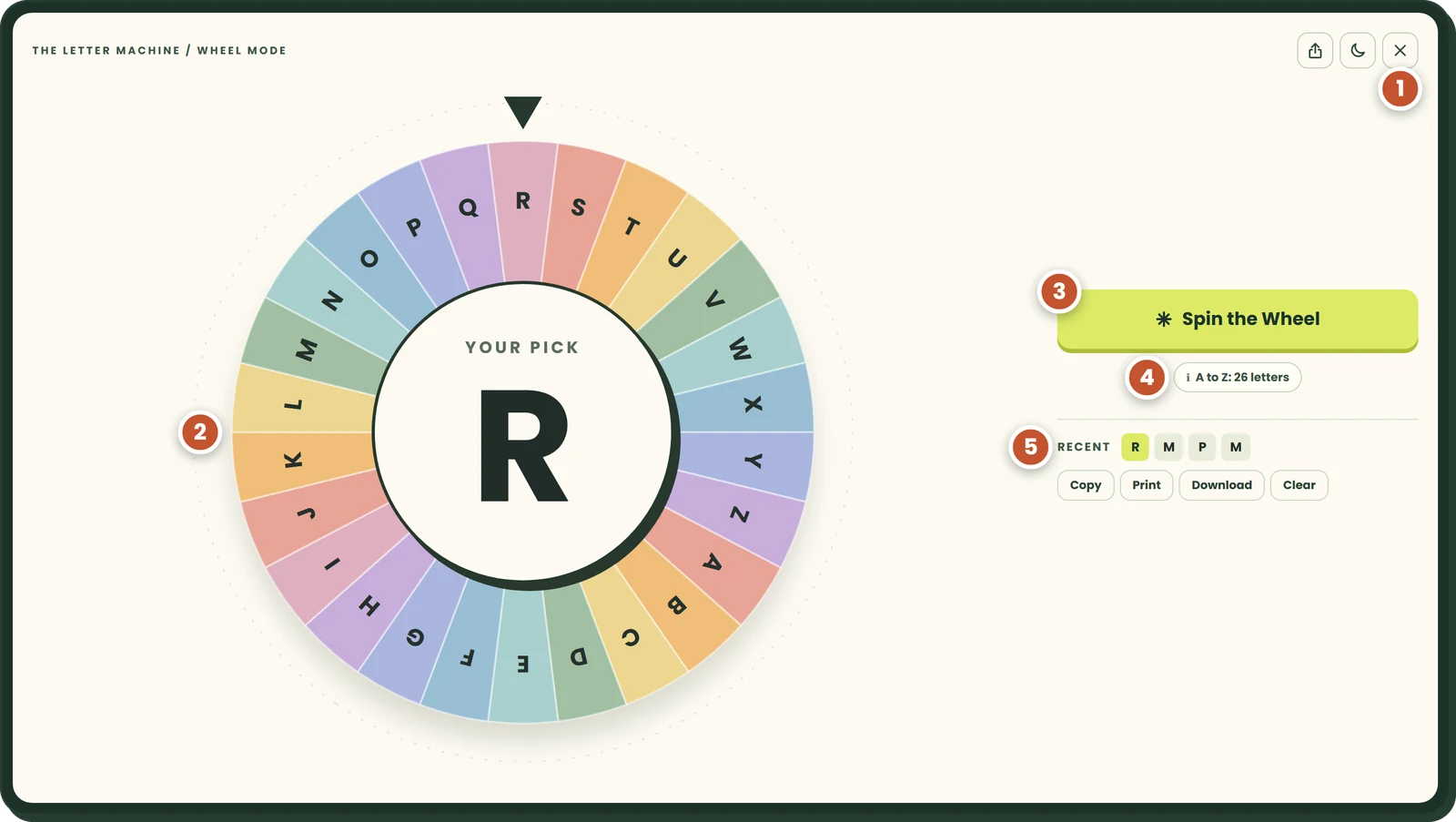
- Close: the full screen icon turns into a cross.
- The wheel or letters: larger than in the page.
- Main button
- Status: the letter set, or the letters left in a no-repeats round.
- Recent: with Copy, Print, Download and Clear.
The letter lab and Advanced settings are hidden in full screen, and the timer shows when it is on. On an iPhone the full screen button is switched off, and the same goes for iPads that report themselves to websites as an iPad.
09 / Colours
How do I switch to night mode or a high contrast wheel?
Tap the moon icon at the top of the tool for night mode, or choose Day or Night under Display in Advanced settings. For the wheel colours, open Look and sound and pick a Wheel theme.
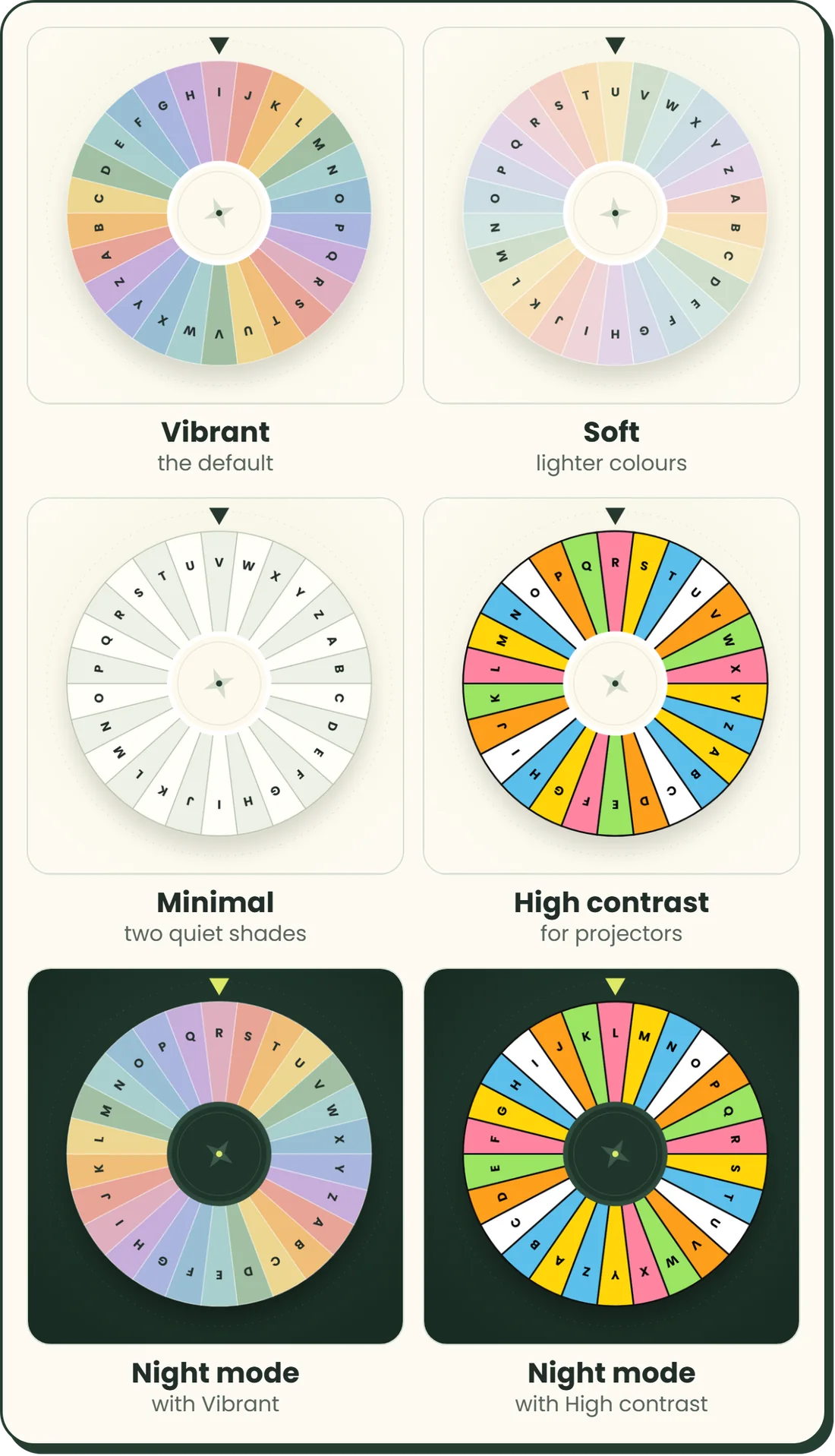
- Vibrant: the default, in nine colours.
- Soft: the same colours, lighter.
- Minimal: two quiet shades of cream and pale green.
- High contrast: yellow, blue, white, orange, green and pink segments with black letters and black lines, for projectors and classroom screens.
- Night mode: a dark green stage with cream letters and a lime pointer, with any theme.
Your theme and night mode stay set in this browser for every tool page on the site.
10 / Keep and share
How do I share my settings or save my letters?
Tap the Share icon to copy a link with your settings, or use the buttons beside the Recent row to copy, print or download your letters.
- Share link: carries the draw settings: Letters or Wheel, count, type, alphabet, your custom letters, excluded letters, letter case, no repeats, unique in set, row or grid, and the timer. Colours, voice and speed are not in the link. On a touch screen with a share menu, the menu opens; otherwise the link is copied and “Link copied” shows.
- Copy: the letters in the Recent row, with commas between them. The button says “Copied!” for a moment.
- Print: a clean page with only the letters, up to your last 100 draws, under the site name and date.
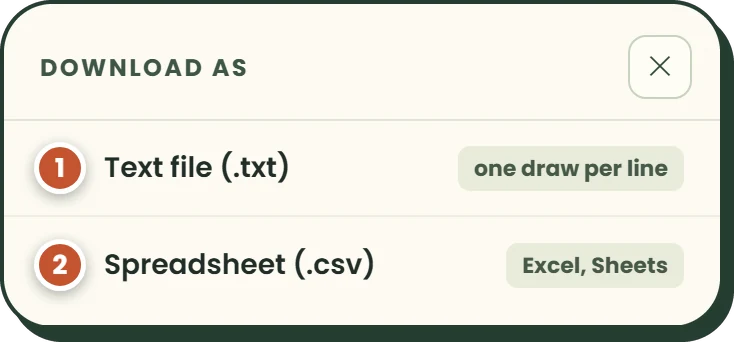
- Download: choose a text file with one draw per line, or a spreadsheet file with one draw per row for Excel or Google Sheets. It holds up to your last 500 draws.
- Clear: starts the list again.
- Text file (.txt): one draw per line.
- Spreadsheet (.csv): one draw per row, one letter per column.
11 / Your browser
Does the generator remember my settings?
Yes, in your browser on this device. The tool keeps your settings in the browser’s own local storage, and there is no account to make.
- Look and sound (theme, voice, confetti, speed, spin time, night mode) is shared by every tool page on the site.
- Draw settings (count, type, alphabet, custom and excluded letters, no repeats, unique in set, case, layout, round length) are kept separately for each tool page, so the homepage and the Letter Wheel can be set up differently.
- Letters or Wheel: the homepage reopens in the mode you used last. The Letter Wheel always opens on the wheel.
- A no-repeats round lasts until you close the tab.
Another browser or device starts with the defaults. There is no reset button: change the settings back, or clear this site’s data in your browser’s settings. More in our Privacy Policy.
12 / Access
Can I use it with a keyboard or a screen reader?
Yes. Every control is a standard button, field or menu that works with the keyboard, and each result is read out by screen readers, such as “Letter Q.”
- Enter or Space presses the button that has focus, including the main button.
- Arrow keys move between the Settings tabs and through choice lists; Home and End jump to the first and last tab.
- Escape closes an open list, then Settings, then full screen.
- Tab stays inside Settings while it is open, so focus does not get lost behind it.
- Reduced motion: if your device asks for less motion, the wheel takes 0.4 seconds and letters do not shuffle.
These checks run as automated tests in a Chromium browser. The tool has not yet been tried with screen readers such as NVDA, TalkBack or VoiceOver.
13 / Quick answers
Frequently asked questions
Why can’t I choose Vowels or Consonants?
They work with the English alphabet only. With another alphabet the two buttons are switched off and the tool draws from all its letters.
Why does the full screen button not work on my iPhone?
Full screen is switched off on iPhone, and on iPads that report themselves to websites as an iPad. Everything else on the tool works as usual.
Why does Speak aloud make no sound?
The tool uses the voices installed on your device. Check the volume first. If “Speech not supported” shows, the browser has no speech at all; if a warning sign shows next to Voice in Advanced settings, no voice loaded, and tapping it shows where to add one.
What does “No letters left” mean?
Every letter in the set is excluded. Check Exclude letters in Advanced settings. With Type set to Custom, the tool asks you to add your letters instead.
Why did I get fewer letters than I asked for?
Unique in set was on and the set has fewer letters than your Count, or a no-repeats round had fewer letters left. You get every letter that could be drawn.
How do I go back to the default settings?
There is no reset button. Change the settings back, or clear this site’s data in your browser’s settings, which also clears the remembered mode.
Ready to draw?